
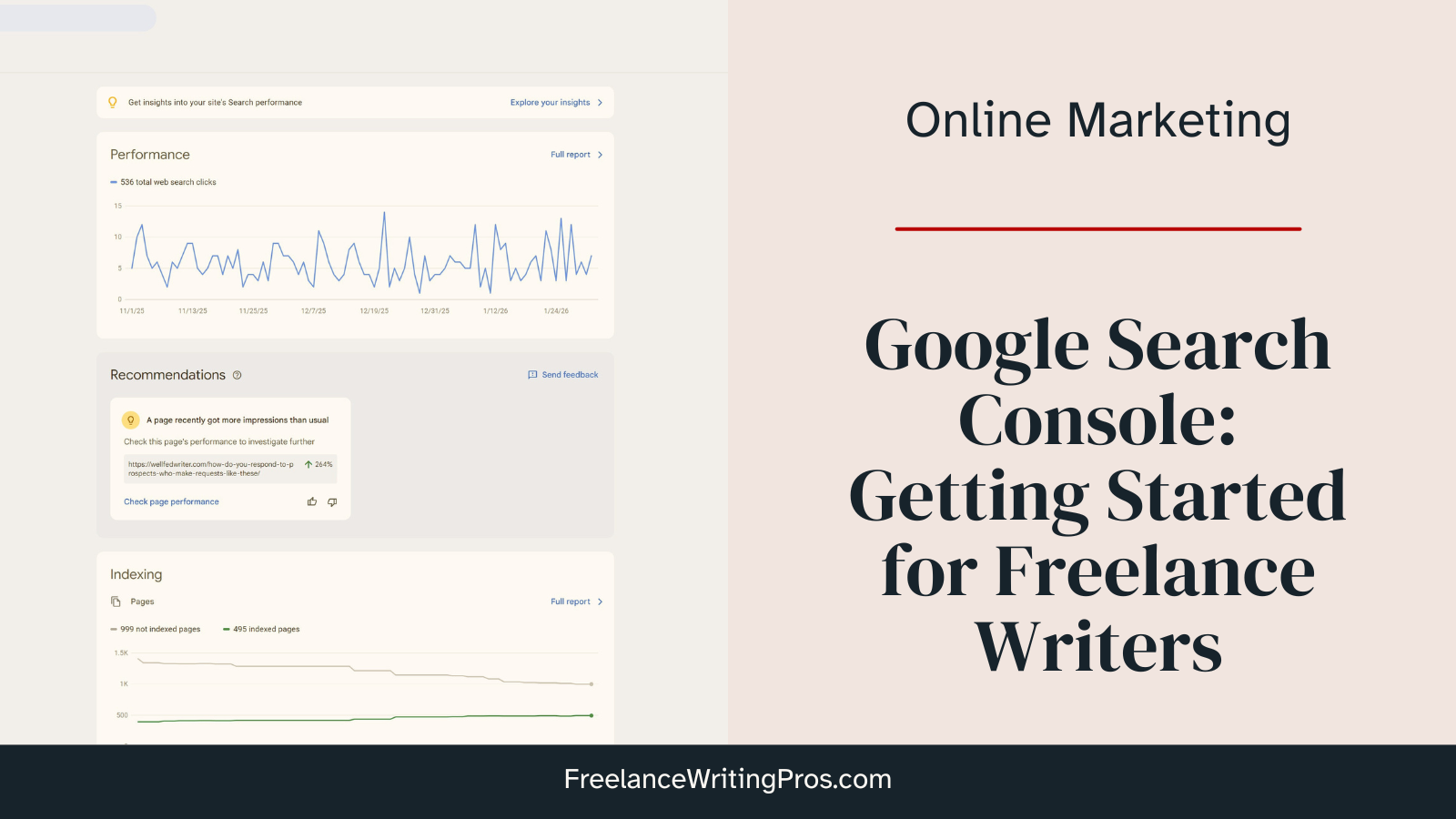
Google Search Console is a tool I’ve brought up in passing in previous blog posts and newsletters. Now I’d like to walk you through how to get started with it.
In this post we’ll explore what Search Console is, why you should use it as a freelance writer, and how you can set it up with your professional website.
What is Google Search Console?
Search Console is a free webmaster tool from Google.
Don’t confuse it with Google Analytics (which we’ll cover in a coming post). Analytics shares information about your website traffic and how your site is being used. Search Console helps you understand how your site appears in Google’s search results.
It can also help you identify technical problems with your site that impact your search visibility.
Why Use Search Console?
When it comes to your professional website, you want it to be seen. If potential clients don’t find your site when they search for a writer like you, you’re not making the most of that web presence. Here are some ways Search Console can help with that:
- Google Search Console gives you insights into which pages are, and aren’t, indexed (available in Google’s search results).
- It lets you know what search queries (AKA “keywords”) drive traffic to your website.
- It’s where you can submit your sitemap to Google.
- You can request indexing of specific pages (like new ones or ones you’ve recently made significant updates to).
- Search Console shows you trends in your search results visibility (impressions) and the number of clicks you get from search results.
We’ll do a deeper dive into how to use some of these features in a later post. For now, let’s get you set up so Google can start providing this data to you.
How to Set Up Your Website in Google Search Console
A little while back, I set up a simple one-page website at JennMattern.com. I hadn’t added it to my Search Console yet, so I’ll use that as an example as I walk you through the setup process.
- First, visit the Search Console page here: https://search.google.com/search-console
- Click the blue button to get started.
- Sign in using your Google account.
That will generally take you to your dashboard. But if it’s your first time using Search Console, you should see a screen like this:
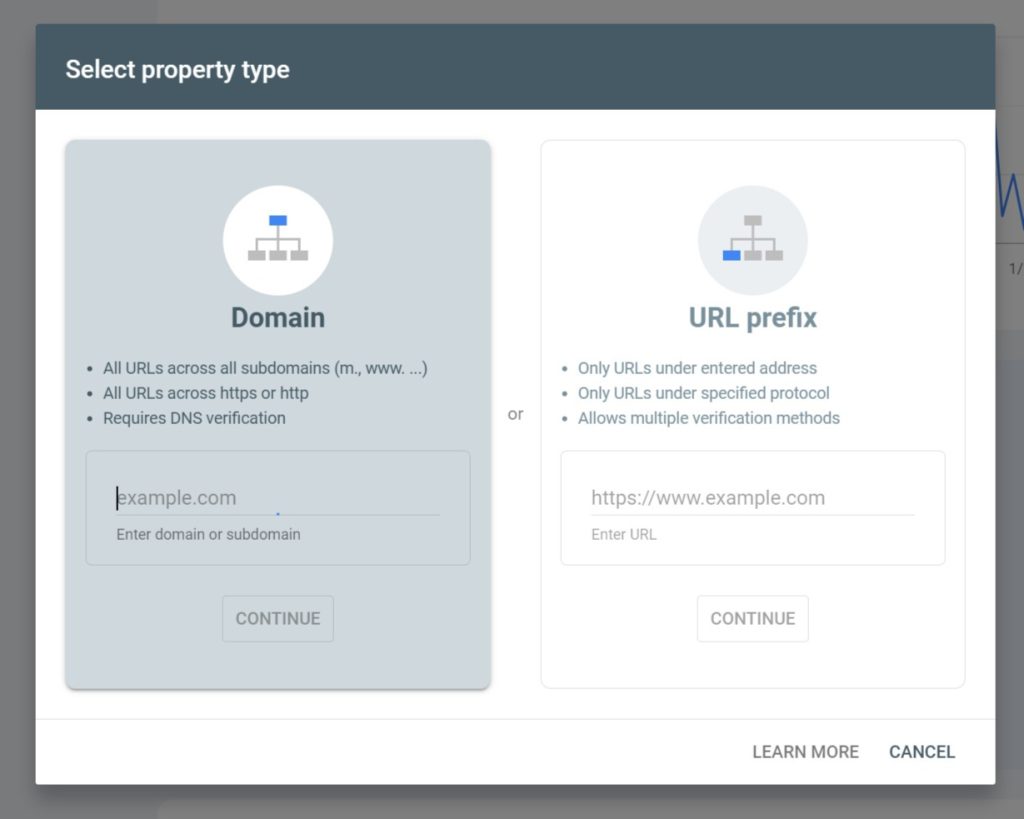
When you see this screen, choose the “Domain” option on the left.
This will let Google Search Console track all versions of your domain (http://, https://, www, non-www, subdomains, etc.).
- Enter your domain name.
- Hit the “continue” button.
Then you should be asked to verify your ownership of the domain. In this case, I was prompted to verify via a DNS record. The screen will look something like this:
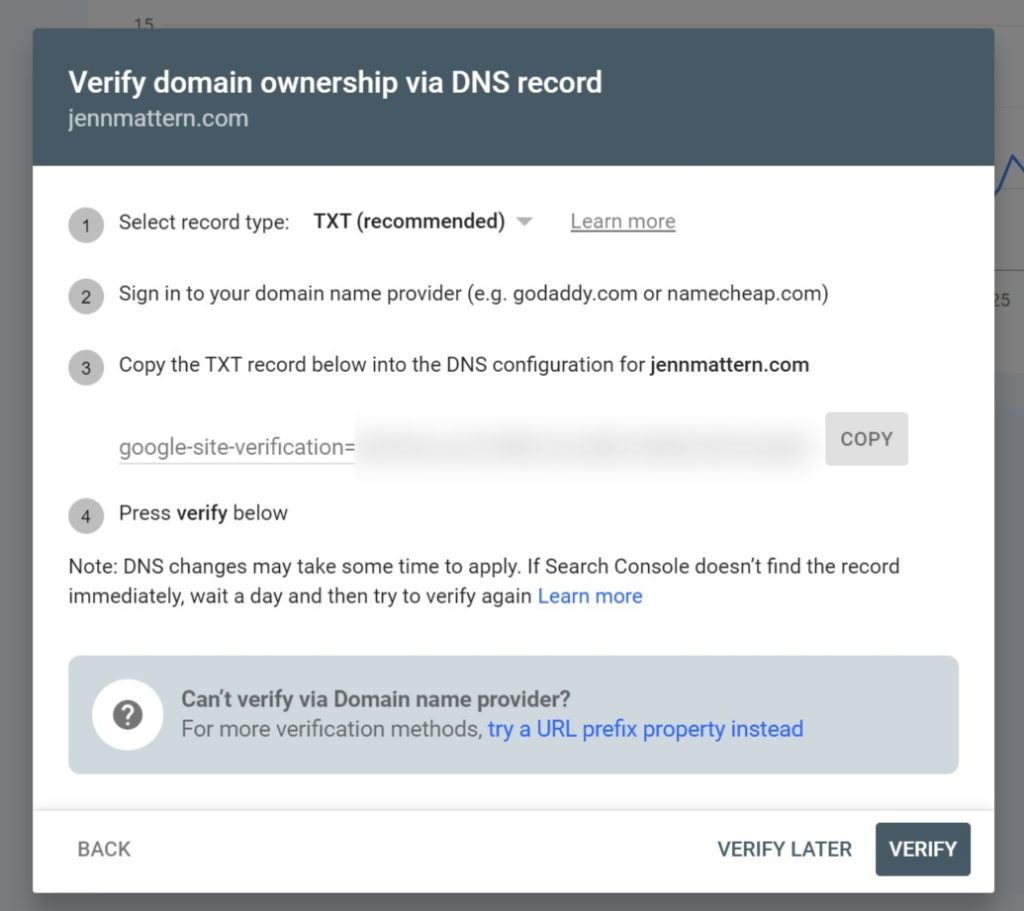
How you add a TXT DNS record will depend on whether your records are managed via your domain name registrar or your hosting provider. This is the verification method you’ll need to use when you use the domain setup as discussed above.
Check out this video from Google as a guide:
After you’ve successfully verified your website in Search Console, you should see a screen like this:
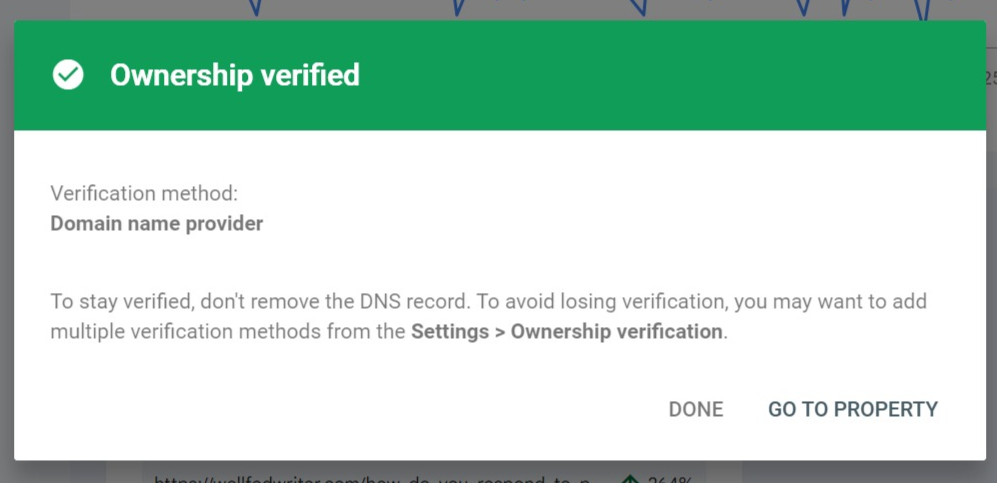
Next, click on “Go to property” to be taken to your new Google Search Console Dashboard.
Right now, you might only have one website in there. When you have multiple websites, you’ll be able to access each of their dashboards from a dropdown list at the top left of any dashboard page.
And that’s it! You’ve now added your professional website to Google Search Console. You can poke around the different pages if you’d like, but you won’t see any data here yet. Check back in a few days and Google should have some new insights for you to review.
Before you go though…
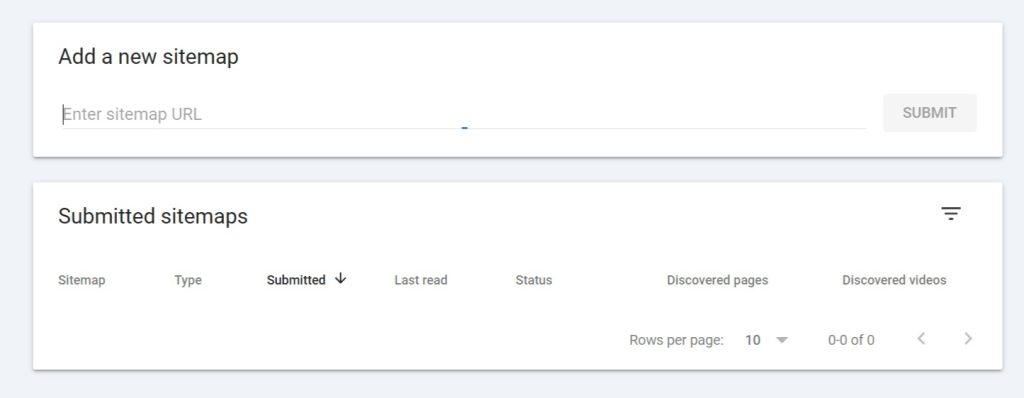
Add your website’s sitemap to Google.
Here’s how:
- Find your sitemap URL (check your SEO plugin if you use one). Mine for this test site was simply https://jennmattern.com/sitemap.xml.
- In your Search Console dashboard, click on “Sitemap” in the left navigation column.
- Paste your sitemap URL into the field you’ll find there).
- Click the “submit” button.
The Sitemaps page looks like this:
OK. Now you really are finished adding your professional website to Google Search Console. It’s a matter of waiting those few days before you’ll see data available. But check back there, then come back here, because I’ll put together a follow-up post walking you through some of the most important Search Console features and data and what you can do with it all.
